Introduction
Have you ever tried deploying to an Azure resource hosted inside a private Virtual Network (VNet) and noticed that the deployment fails even though the Azure DevOps pipeline is configured correctly?
This is a common challenge in Enterprise environments.
Why can’t we use Microsoft Hosted Agents
Azure DevOps Microsoft-hosted agents (Windows or Ubuntu) are created dynamically by Microsoft during each pipeline execution. Since these agents use dynamic outbound IP addresses, we cannot reliably whitelist them in secure environments. As a result, deployments of private azure resources may fail. This issue is not limited to Azure Web Apps and can affect any Azure service hosted within a private network.
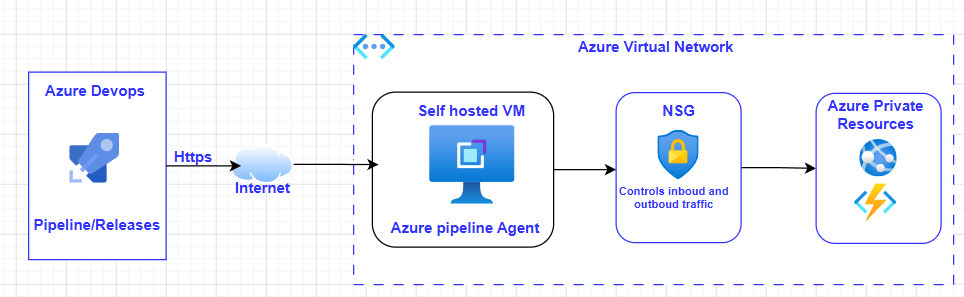
High level Architecture
Why Self Hosted Pool Agents?
- Azure resources are private
- Public access is disabled
- Firewall restrictions exist
- Private endpoints are used
- Azure DevOps hosted agents also have execution limitations depending on the subscription model.
Create a Virtual Machine(VM)
Create an Azure Virtual Machine inside the same VNet as the target Azure resources. This VM will act as the self-hosted Azure DevOps agent.
Access VM using Azure Bastion
Use Azure Bastion to securely access the VM without exposing public RDP/SSH ports
Tip: Use Azure Bastion Standard Tier if file copy support is required. Basic tier does not support file transfer.
Download the Azure Pipelines Agent
In the Azure DevOps, open the agent pool -> New Agent -> Select OS -> download the agent package. Copy the downloaded package to VM.
Example:
c:\agentConfigure the Agent
Open command prompt and navigate to the extracted folder.
C:\agent>config.cmdThe setup will prompt:
- Azure Devops organization URL
- Personal Access Token (PAT)
- Agent Pool Name
- Agent Name
- Work Folder
Example:
Agent pool name: enterprise-self-hosted-agentGenerate Personal Access Token (PAT)
Open Azure DevOps and navigate to :
Azure Devops -> User Settings -> PATCreate token with :
Agent Pools -> Read and ManageTip: You must have necessary privilege to generate token
Start the Agent
Go to command prompt :
c:\agentand run this command to manually start the agent:
run.cmdInstall as a windows service. This is to start the service automatically everytime when you restart the VM.
svc install
svc start
Whitelist Required Endpoints
The VM must have access to all the dependencies, so, whitelist them.
Example:
Nuget packages
External Services
Register an Agent Pool in Azure DevOps
Navigate to :
Azure Devops -> Org Settings -> Agent Pools -> Create new agent poolGive the pool name that you configured in the step "Configure the Agent"
Example: enterprise-self-hosted-agent
Use the agent in YAML pipeline
pool:
    name: enterprise-self-hosted-agent
Pros
- Private endpoints
- VNet
- Internal database
- Unlimited runtime
Cons
- Additional cost (VM and Bastion)
- VM Maintenance
No comments found.